
For many U.S. professionals, document collaboration conflicts starts as a small annoyance and becomes a daily drain on attention. A practical response to document collaboration issues focuses on one result: helping people keep one trusted document while making edits, comments, decisions, and earlier versions visible to the people who need them. While comparing products, a separate folder of practical software reading can sit beside official vendor documentation without being treated as provider guidance. The five services below approach the problem differently, so compare them against the way your work already happens.
Five Collaboration Tools That Help Keep One Working Version
Before comparing products, write down the current failure in one sentence. For document collaboration conflicts, that means identifying where the friction actually appears: during capture, handoff, review, access, or follow-up. The most useful comparison points here are real-time editing, comments, suggestions, permissions, version history, task follow-up, and finalization controls. A tool should remove ambiguity at that point, not create a second place that people must remember to check.
1. Google Docs
Google Docs supports real-time co-editing, comments, suggestions, sharing permissions, action items, autosave, and version history. Because editors work in the same cloud document, teams can reduce the number of separately named copies circulating through email or chat. For document collaboration conflicts, compare these functions with the exact friction you need to remove and keep the setup focused.
2. Microsoft Word
Word in Microsoft 365 supports real-time co-authoring, comments, presence indicators, cloud sharing, and version history when files are stored in OneDrive or SharePoint. Version history can restore earlier versions, which is useful when several people edit the same document and an unwanted change needs to be reversed. This makes Microsoft Word useful to compare for document collaboration conflicts, especially when the team can give the tool one clear role.
3. Notion
Notion combines notes, documents, databases, wikis, tasks, comments, real-time collaboration, sharing, and searchable workspace organization. Its flexible pages can hold meeting notes, project references, decisions, and linked databases instead of scattering them across separate note files. For document collaboration conflicts, test the relevant controls with normal work first, then keep only the settings that reduce confusion.
4. Dropbox Paper
Dropbox Paper supports shared documents, comments, mentions, assigned to-dos, and collaborative editing inside the Dropbox environment. It works well for lightweight project documents where written discussion and task follow-up need to live beside the content. For a workflow dealing with document collaboration conflicts, the practical test is whether these capabilities reduce extra steps without creating another place to manage.
5. Zoho Writer
Zoho Writer supports real-time collaboration, tracked changes, contextual comments, sharing, co-authoring, and controls for marking a document final. The finalization feature is useful when a team needs a clear point at which active editing should stop and the approved text should be protected. For document collaboration conflicts, treat Zoho Writer as one option to compare against your current process rather than adding every available feature.
How Do You Prevent Document Versions From Splitting?
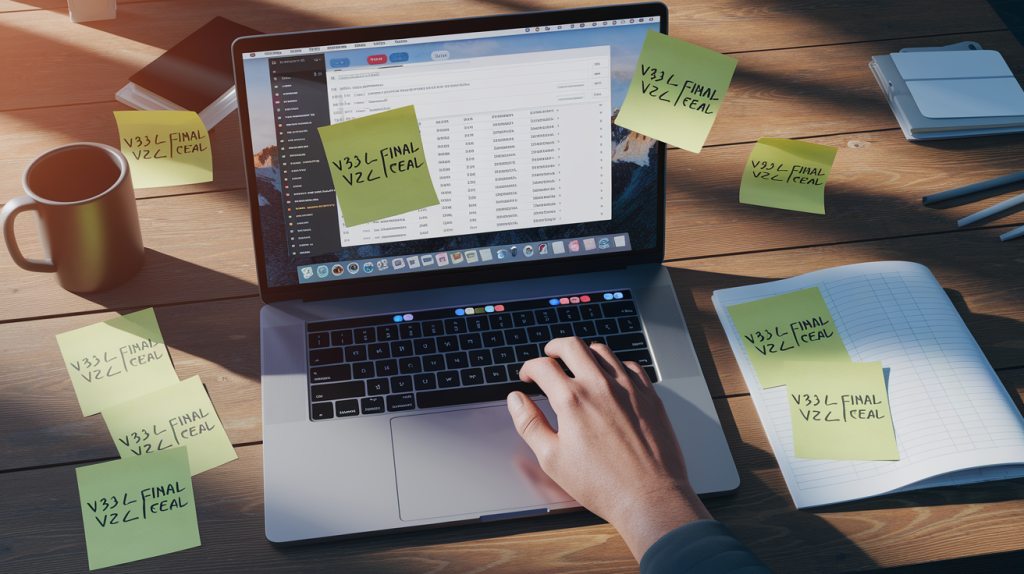
Choose the product only after you can explain the problem without naming a product. In this case, compare real-time editing, comments, suggestions, permissions, version history, task follow-up, and finalization controls. Also decide how much administration the system will require after the first week. If the team needs a specialist to maintain a routine workflow, the setup may be too complicated. Keep helpful digital guidance separate from official product help so general research does not get mistaken for vendor instructions. Most importantly, avoid emailing attachments named final, final2, and final-revised instead of using version history.
Frequently Asked Questions
What is the first step in fixing document collaboration conflicts?
Start by documenting where the current process breaks and what a successful outcome looks like. Change one rule or setting first, use it for several days, and then decide whether the problem requires a new tool or only a cleaner configuration.
Can automation solve document collaboration conflicts by itself?
Automation can remove repetitive steps, but it should follow a clear process. If ownership, priority, or expected behavior is still uncertain, automation may make the confusion happen faster. Stabilize the human workflow first, then automate predictable actions.
What is the biggest setup mistake to avoid?
The most common mistake is adding features before defining the operating rule. Decide who owns the work, where the source of truth lives, and what requires attention. Then configure the software to reinforce those decisions instead of inventing new exceptions.
Keep the Conversation Attached to the Document
The lasting fix for document collaboration conflicts is not a larger stack of software; it is a smaller number of clear decisions supported by the right tool. Keep the rule visible, remove stale configuration, and revisit the setup when work changes. A separate bookmark folder can include additional software context for general digital reference without treating it as documentation for any provider above. Start with the highest-friction step this week, simplify it, and only then decide what deserves automation or a new subscription.